![Fyxt logo small white.png]](https://helpcenter.fyxt.com/hs-fs/hubfs/Fyxt%20logo%20small%20white.png?height=40&name=Fyxt%20logo%20small%20white.png)
Contents
- Basic Job Structure
- Activity Log
- Files
- Notes
- Vendors
- Job Costs
- Timesheets
- Scheduling
- Conversations
- Checklists
- Linked Jobs
- Custom Fields
Basic Job Structure
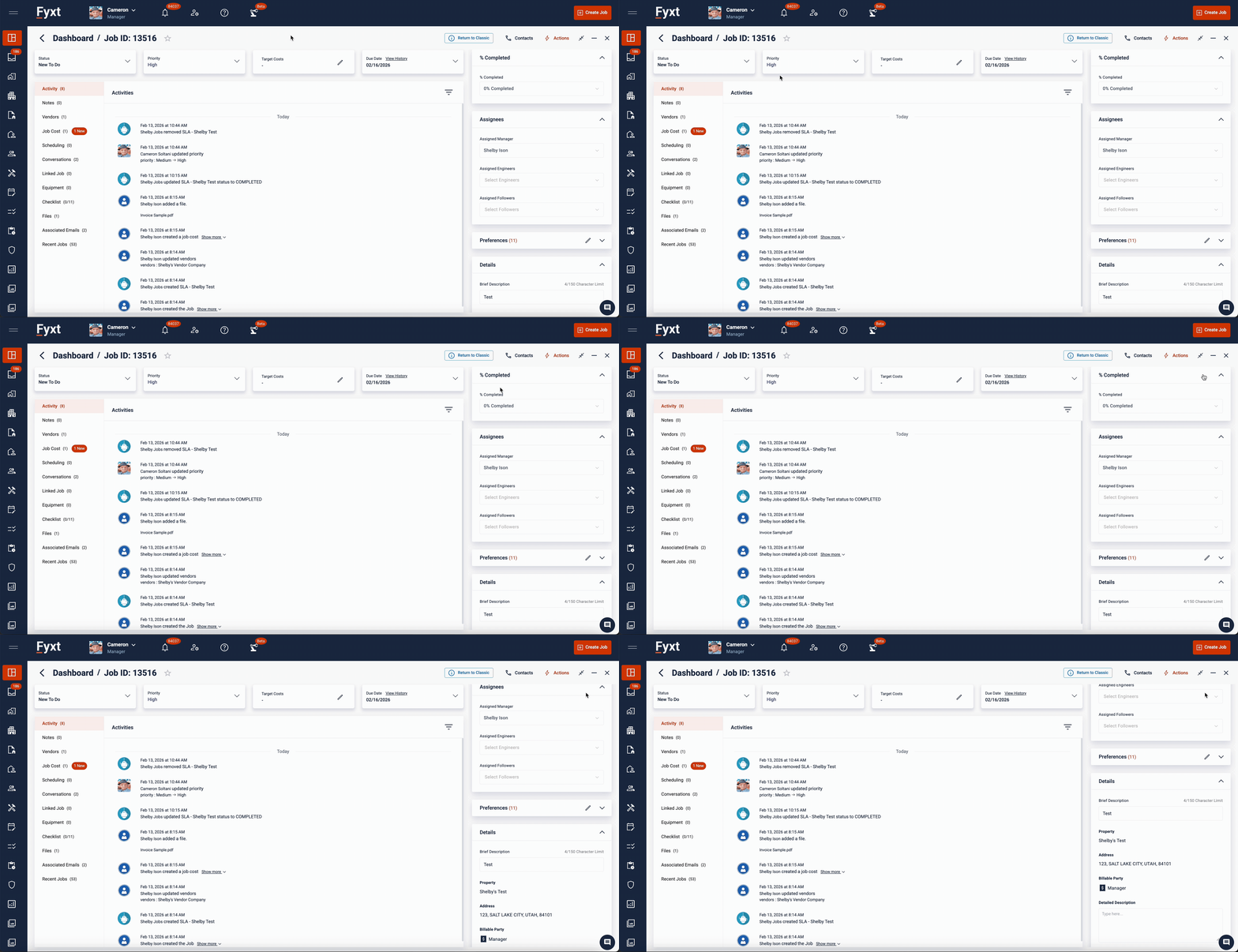
Fyxt Jobs are structured to keep essential information easily accessible. At the top of each Job, you’ll find fields for:
- Status
- Priority
- Target Cost
- Target Completion Date
- Contacts
- You can assign additional Job Requestors when viewing or managing a Job’s Contacts. Job Requestors are notified of status updates and can be set to receive other communications from the Workflow Manager for streamlined tracking and collaboration.
- Quick Actions
- Quick Actions are your shortcut to common functions of a Job, like adding Job Costs & Timesheets or generating a pdf Job Report.
The right sidebar provides access to contextual information while maximizing your main workspace, ensuring primary Job details remain front and center. The right sidebar includes:
- % Completed
- This section allows you to quickly identify when Job Progress has met key milestones. Enjoy automated updates to this field using the Workflow Manager.
- Assignments
- Assign Managers, Engineers, and Followers to stay up-to-date on work progress.
- Preferences
- Preferences are set in the Global Job Preferences, and some can be overridden within individual Jobs. These Local Job Preferences can be customized here. Only users with permission to Override Job Permissions will be able to modify account-wide configurations. View the Job Preferences help center article here.
- Details
- Details will host contextual information like Property, Service Type, Category, Location and more.
Each Job's main workspace is divided into multiple pages, accessible through the left-side menu. The sections below detail the features and functions available in this area.
Activity Log
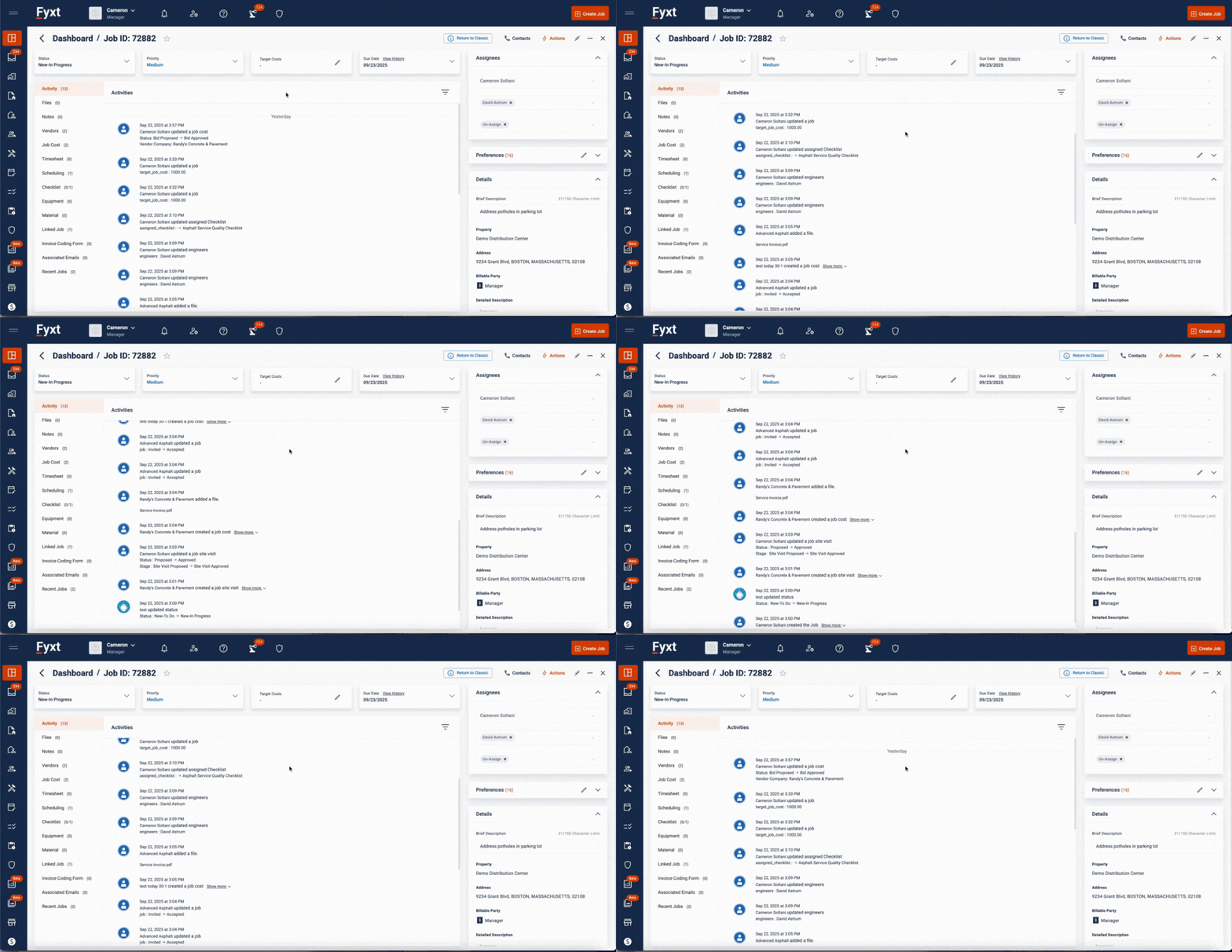
The Activity Log provides a detailed record of all actions performed on a Job. Use it to quickly review updates made by team members or verify the timing of specific activities.
Files
-gif.gif?width=670&height=346&name=Screen%20Recording%202025-09-22%20at%207-54-12%E2%80%AFPM-mov%20(1)-gif.gif)
The Fyxt File Manager automatically organizes files for your quick access. Invoices, for example will be accessed from the Invoices folder, which will host all invoices submitted to this Job. You may upload, replace, delete, modify information on files and set reminders as needed. For a detailed tutorial on Files, see the File Manager help center article here
Notes
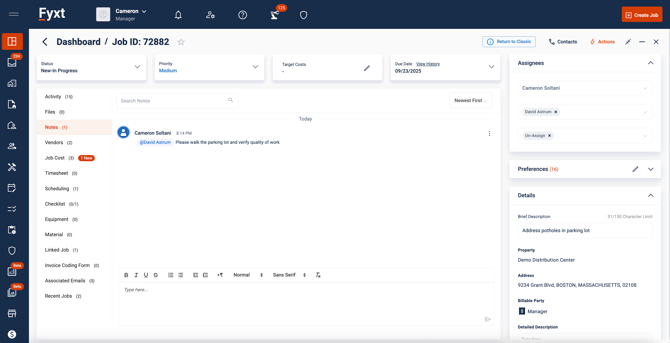
The Notes tab within Jobs streamlines communication, supporting both internal team collaboration and external messaging with tenants and vendors connected to the Job. Fyxt Notes include @mention functionality to enhance clarity and accountability.
Use internal @mentions to tag team members, ensuring they’re notified and able to respond promptly. For external communications, @mention a tenant or vendor contact to securely forward your message directly to them—external users only see messages in which they are specifically mentioned.
Vendors
-gif.gif?width=670&height=346&name=Screen%20Recording%202025-09-22%20at%207-54-12%E2%80%AFPM-mov%20(2)-gif.gif)
The Vendors tab seamlessly integrates with Job Preferences to automate and standardize your vendor management workflows in Fyxt. For example, Job Preferences can enforce compliance by requiring a minimum number of vendor bids on Jobs tied to specific Service Types or Categories, supporting competitive pricing and transparent decision-making. Once vendors are linked to a Job, you have granular control and flexibility through several features:
Approved to Work Status: Each vendor added to a Job is assigned a status: pending approval, approved to work, or rejected. Only one vendor can be approved to work on any given Job at a time, ensuring clear accountability and streamlined project management. You have the flexibility to share a Job with multiple vendors as needed during the bidding or vetting process. When you approve any Job Cost submitted by a vendor—such as a bid, invoice, or change order—the system will automatically update that vendor’s status to “approved to work,” unless you have manually designated a different status beforehand.
Internal Job Status vs. Vendor Job Status: Fyxt separates Job Status into Internal and Vendor categories to balance vendor communication with management control. By default, automation is kept to a minimum—automatically updating the Vendor Job Status only when management Closes or Cancels a job. However, by using the Workflow Manager, you can correlate these statuses to enjoy the best of both worlds: maintaining absolute control over vendor updates while leveraging automations to streamline communication.
Manage Recipients: Designate which vendor contacts should receive job notifications, ensuring the right stakeholders have instant access to essential information.
Add Scope: Clearly define and attach detailed work scopes, instructions, and relevant files for vendors prior to dispatch. The View History feature allows you to review all updates and past scope versions shared with a vendor, promoting strong record-keeping. View the Scope & Instruction help center article here.
Copy Vendor Link: Instantly share a unique, secure link with any vendor, providing easy, login-free access to job details and requirements whenever needed.
Notify Vendors When Ready: Maintain full control over when vendors receive notifications. This lets you finalize scopes and requirements before sending communications, preventing premature outreach and ensuring complete, accurate information.
Remove Vendor: Effortlessly remove a vendor from the Job as your project needs evolve, keeping your vendor list concise and relevant.
Send Service Agreement: Send customized service agreements directly to vendors when you’re ready, with signature and compliance requirements adjustable within Job Preferences.
By leveraging these tools, you create a seamless vendor experience—driving efficiency, supporting compliance, and enhancing project visibility from initial bid through to service delivery.
Job Costs
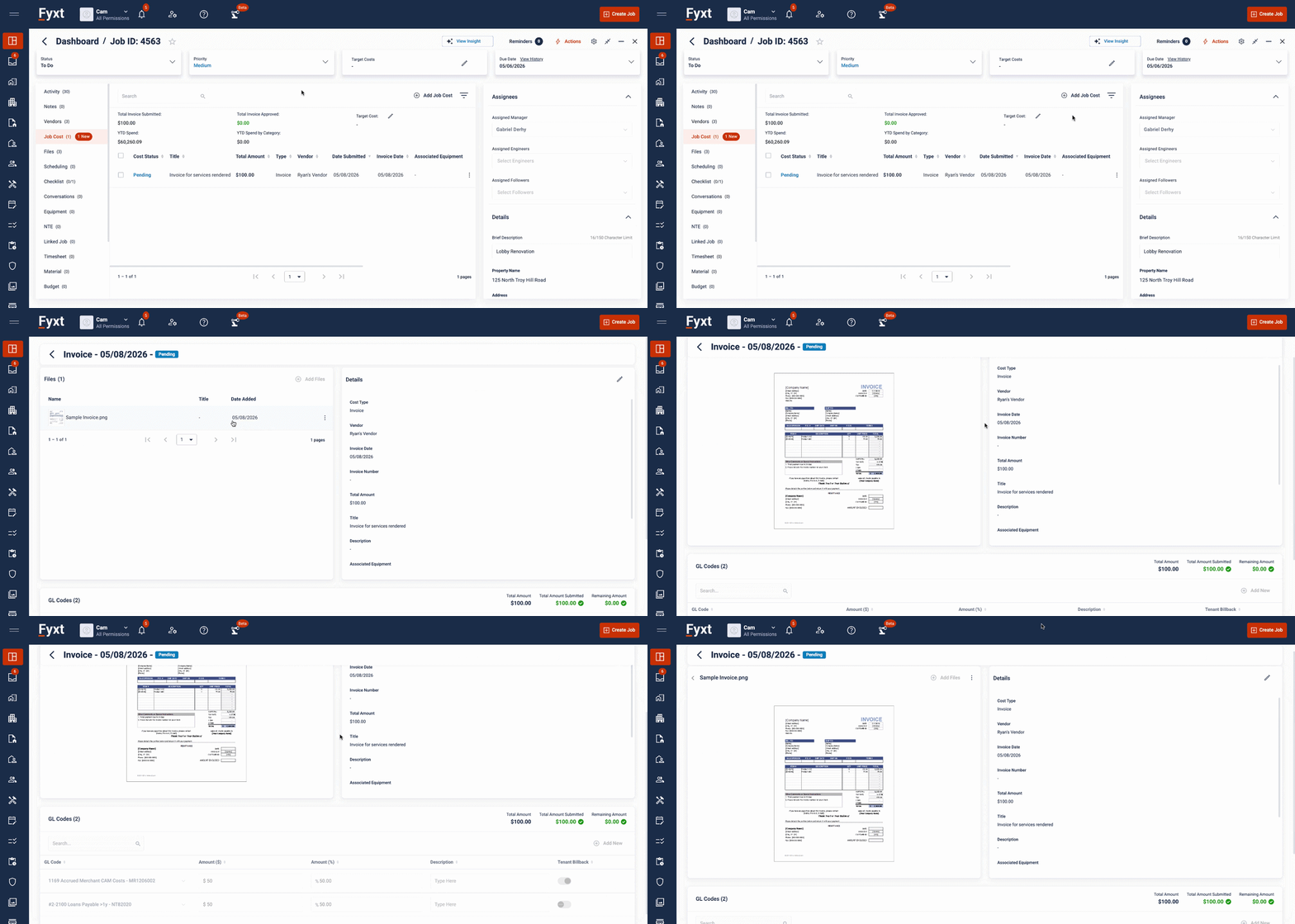
Job Costs centralizes the management of all Bids, Change Orders, Invoices, and Purchase Orders associated with a Job. Fyxt’s configurable Approval Scenarios empower you to establish detailed approval hierarchies that reflect your organization’s unique processes, allowing you to designate specific approvers or require multiple stages of approval as needed. Additionally, both Invoices and Purchase Orders in Fyxt support assignment of General Ledger Codes, enabling more precise expense tracking, budget alignment, and robust financial reporting across your portfolio.
Timesheets
-gif.gif?width=670&height=346&name=Screen%20Recording%202025-09-22%20at%207-54-12%E2%80%AFPM-mov%20(4)-gif.gif)
While Job Costs handle expenses related to vendors, the Timesheets section is dedicated to managing your internal engineering team’s labor hours. Here, you can review and validate engineer timesheet submissions, approve or reject reported hours, and enter timesheet data on behalf of team members. Timesheets can only be entered once engineers have been assigned to a Job.
Scheduling
-gif.gif?width=670&height=346&name=Screen%20Recording%202025-09-22%20at%207-54-12%E2%80%AFPM-mov%20(5)-gif.gif)
Scheduling in Jobs allows your team to coordinate when engineers or vendors will be completing work on-site.
Conversations
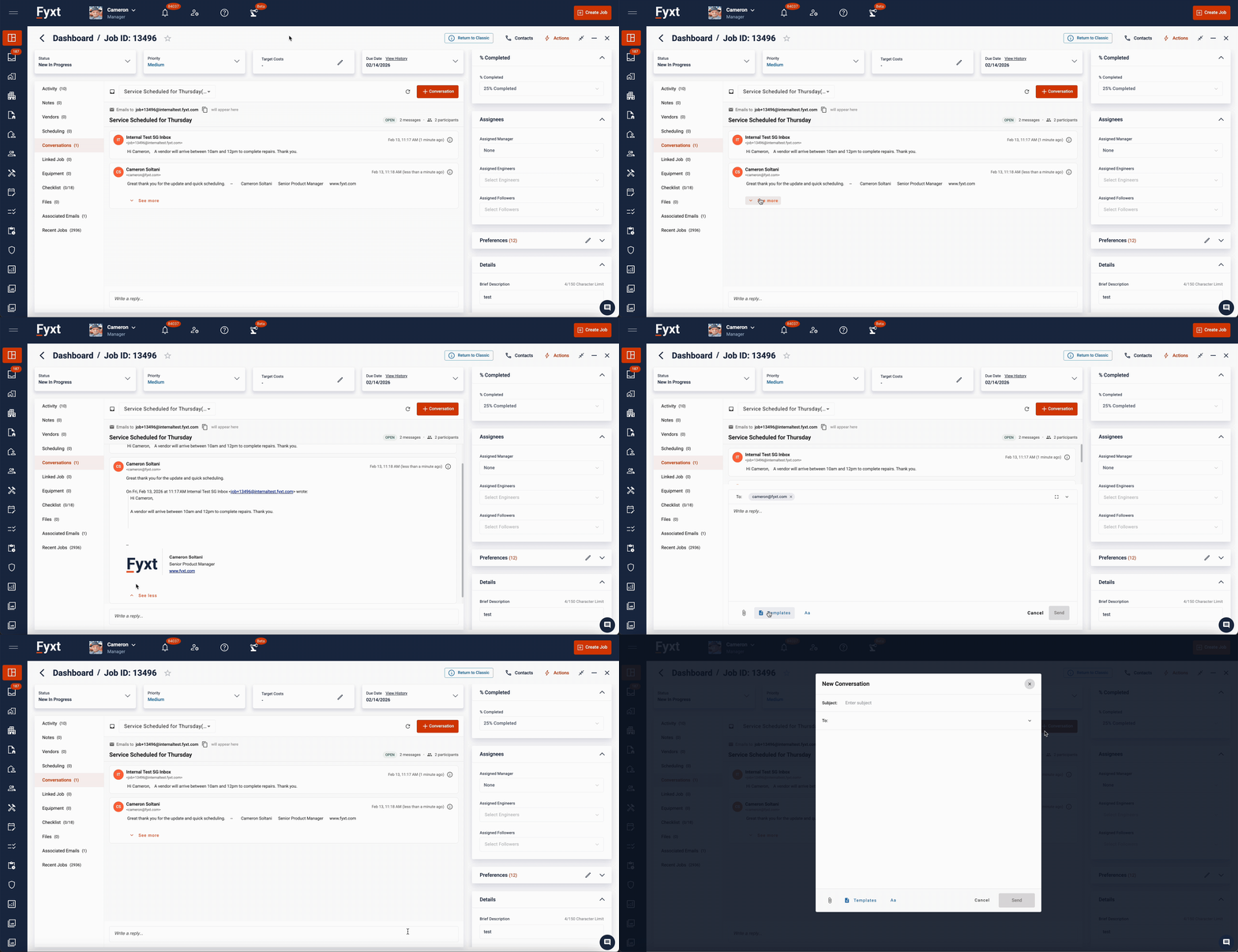
Conversations enable direct email communication with any contact, with all messages stored within the Job itself. Whether you are notifying tenants about required access to a unit or coordinating with vendors, Conversations keep all correspondence simple, organized, and centralized.
Checklists
.gif?width=670&height=346&name=Screen%20Recording%202025-09-22%20at%207.54.12%20PM.mov%20(6).gif)
Checklists provide a structured way to standardize tasks and processes across teams. Typically created as templates and then applied to Jobs, checklists can also be generated directly within a Job to address unique requirements. Any user with Job access can complete checklists and add photos or comments to individual items for added clarity and documentation. Fyxt also enables checklists to require digital signatures from multiple stakeholders, helping ensure accountability. If a checklist contains incomplete items at the time of signing, the platform will prompt you—although you can still proceed with signing if needed. View the Checklists help center article here.
Linked Jobs
-gif.gif?width=670&height=346&name=Screen%20Recording%202025-09-22%20at%207-54-12%E2%80%AFPM-mov%20(7)-gif.gif)
Linking Jobs empowers your team to manage multiple, related, or overlapping work scopes simultaneously. With flexible options for creating duplicates, establishing parent-child relationships, and more, Linked Jobs help streamline coordination and ensure visibility across interconnected projects.
Custom Fields
-gif.gif?width=670&height=346&name=Screen%20Recording%202025-09-22%20at%207-54-12%E2%80%AFPM-mov%20(8)-gif.gif)
While Fyxt captures a comprehensive range of operational data, every organization has unique information needs. Custom Fields enable you to tailor data tracking in Fyxt to match your specific requirements. Whether monitoring specialized metrics, supporting team workflows, or building integration endpoints with other systems, Custom Fields provide the flexibility to create a unified and comprehensive source of truth for your portfolio. View the Custom Fields help center article here.