![Fyxt logo small white.png]](https://helpcenter.fyxt.com/hs-fs/hubfs/Fyxt%20logo%20small%20white.png?height=40&name=Fyxt%20logo%20small%20white.png)
Custom Fields: Jobs
This article explains how to configure custom fields for Jobs within the Fyxt system.
1. Accessing Custom Fields
Custom Fields are supported across various modules in Fyxt. Organized in named tabs, they act as an additional data layer, allowing users to track data unique to their operations as well as surfacing data through integrations.
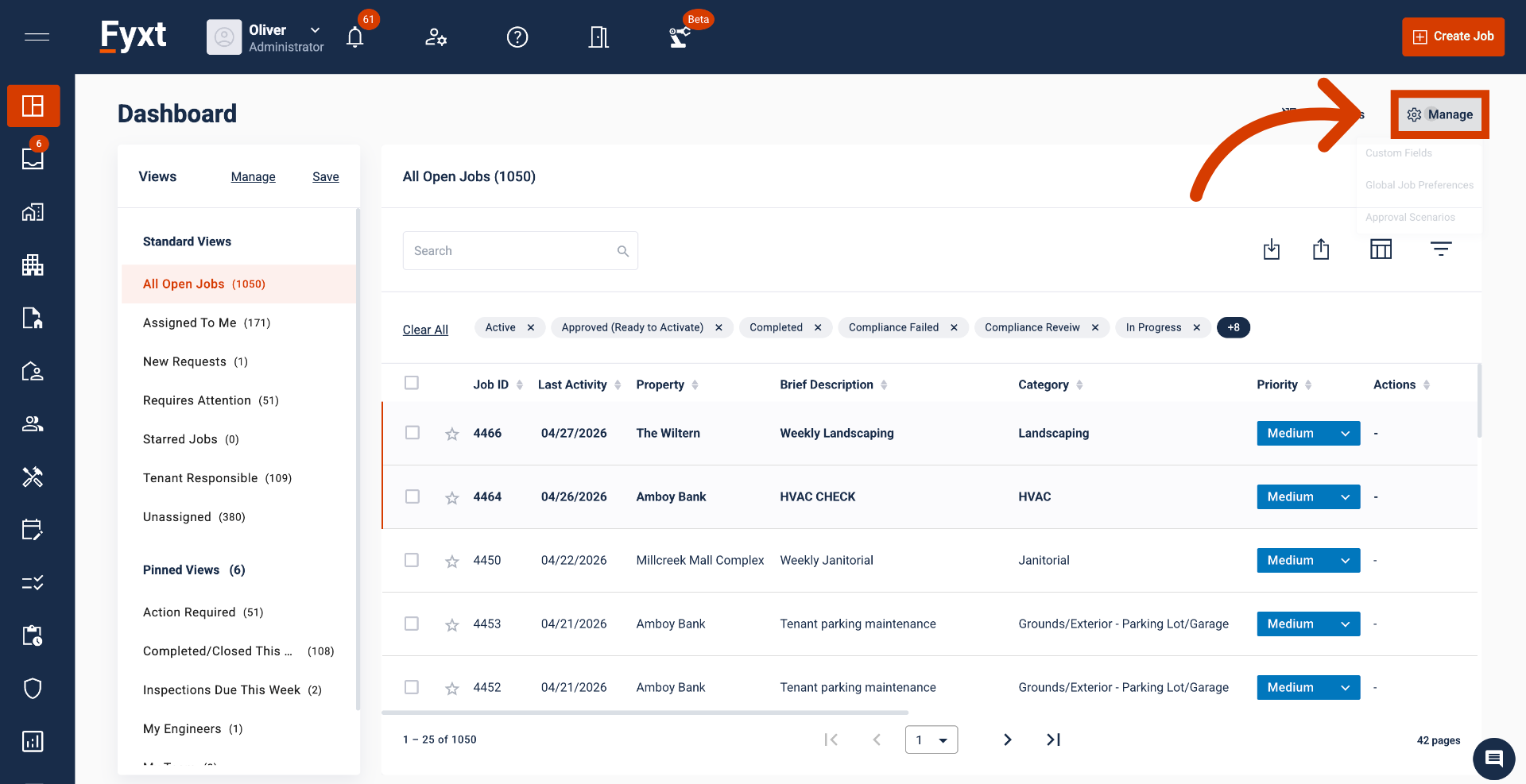
2. Custom Fields in Jobs
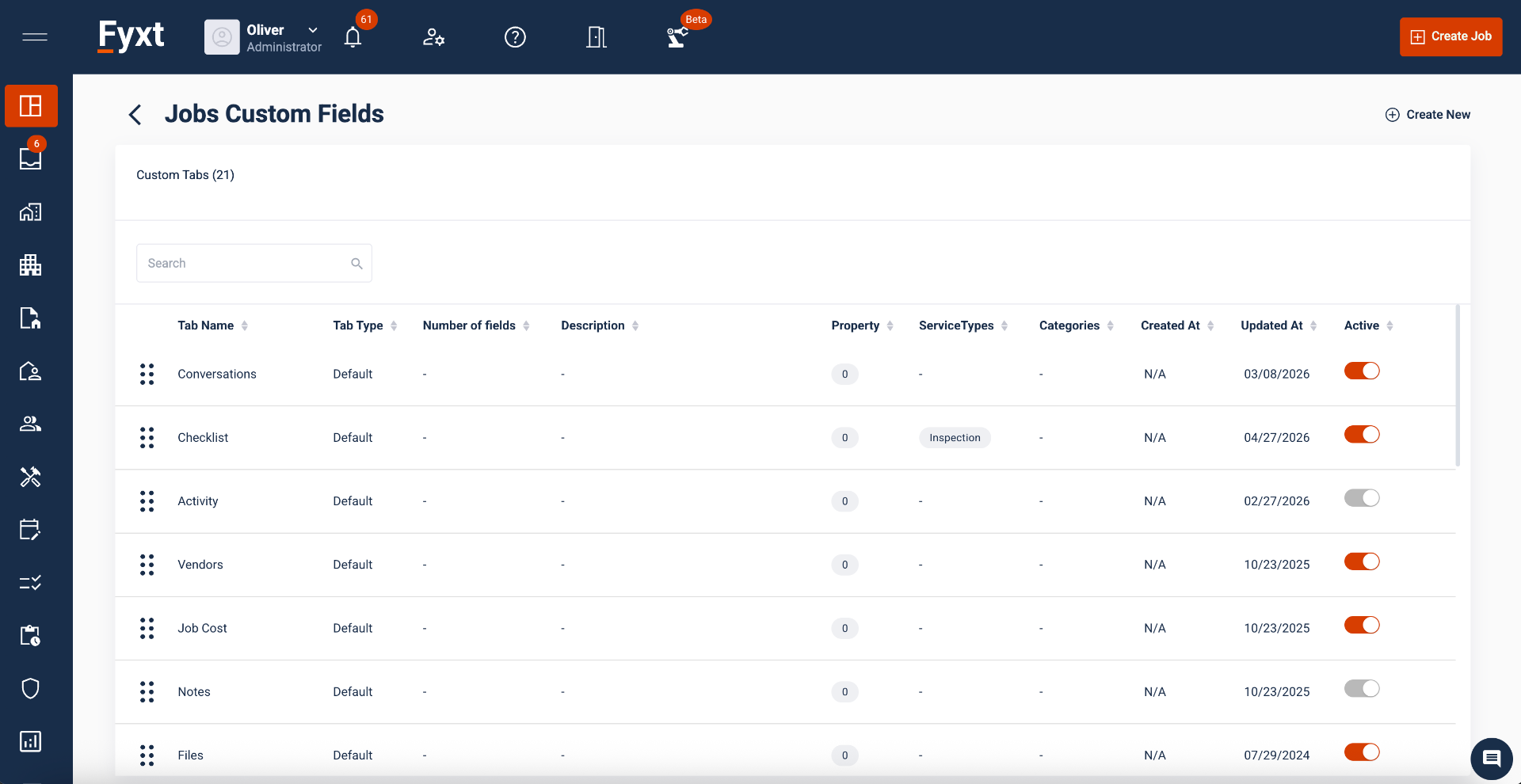
When accessed from within the Jobs Dashboard, your page will display all data tabs available on Jobs. These will include both Custom Field tabs, and Fyxt Default tabs. Each row can be dragged and dropped in place using the leftmost icon, allowing users to customize the order of tabs populating in Jobs.
3. Custom Field Tabs vs Fyxt Default tabs
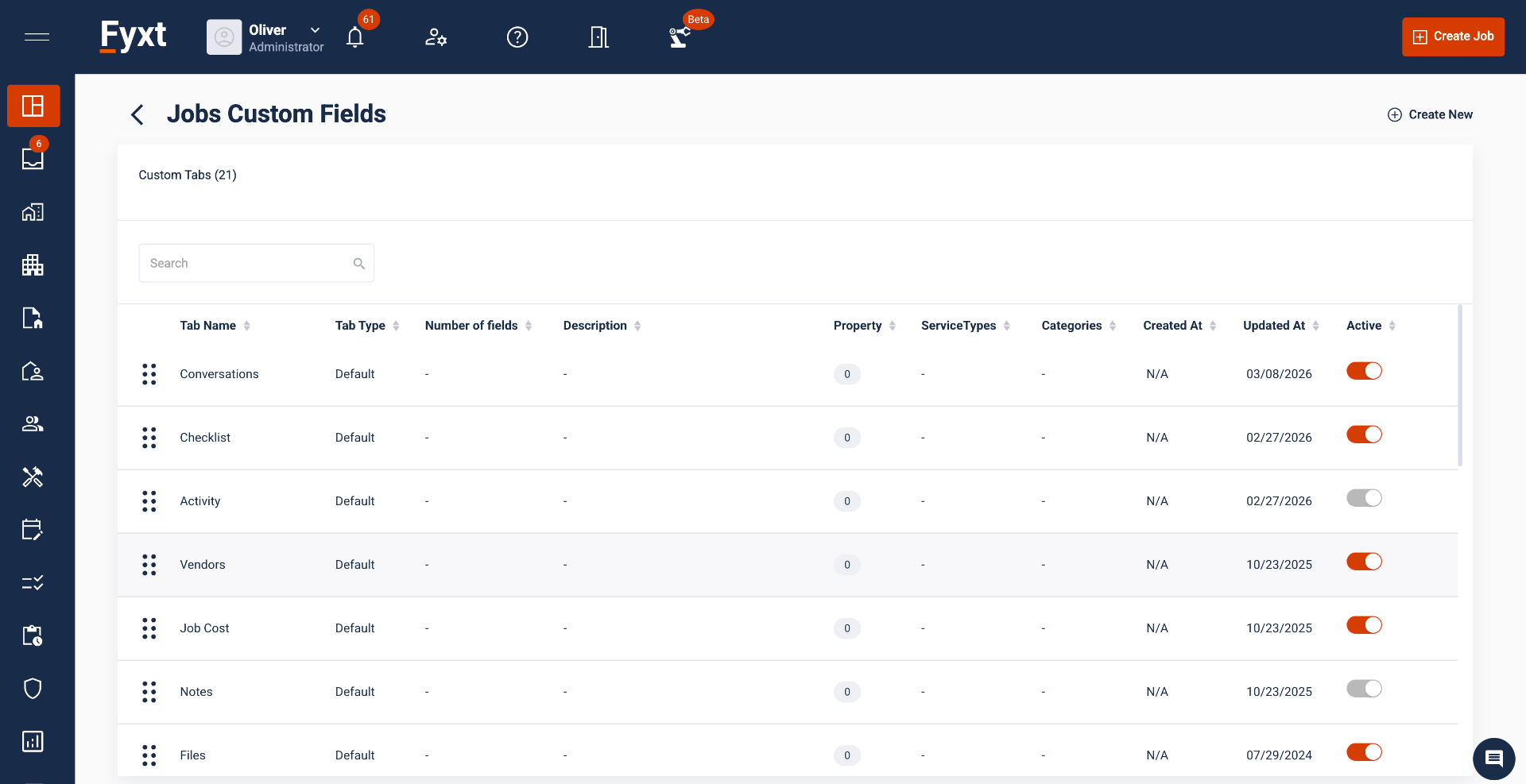
There are differences between the configuration options of Custom Field tabs vs Fyxt Default tabs. Let's begin with a Fyxt Default tab.
4. The Checklist Tab
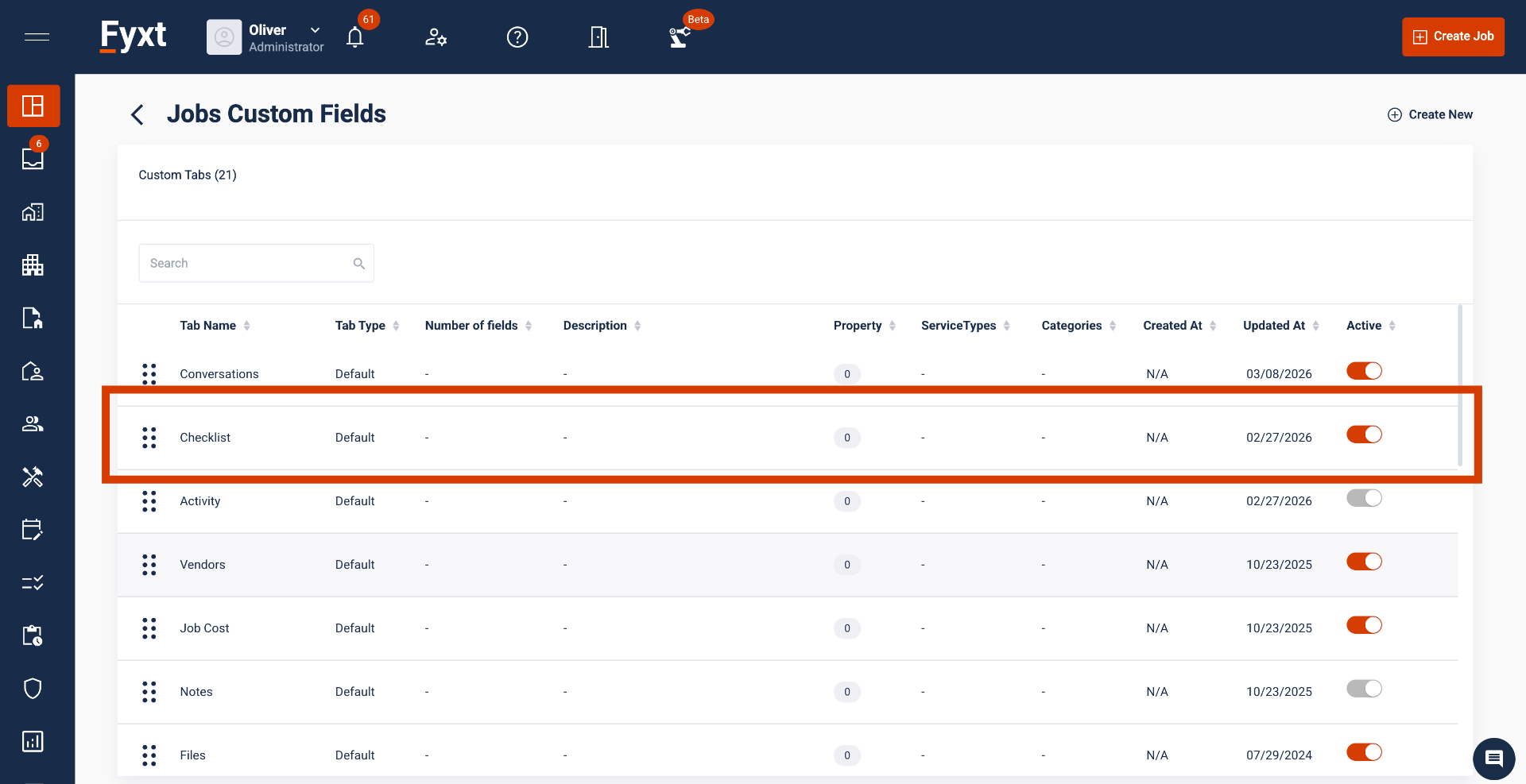
Checklists, a Fyxt Default, are used to standardize the output of inspections completed by different users. If Checklists are not needed on other Service Types, they and other tabs can be customized to apply only when relevant to your operations. To begin, click on the Checklist row.
5. Configuring Tabs: When They Apply
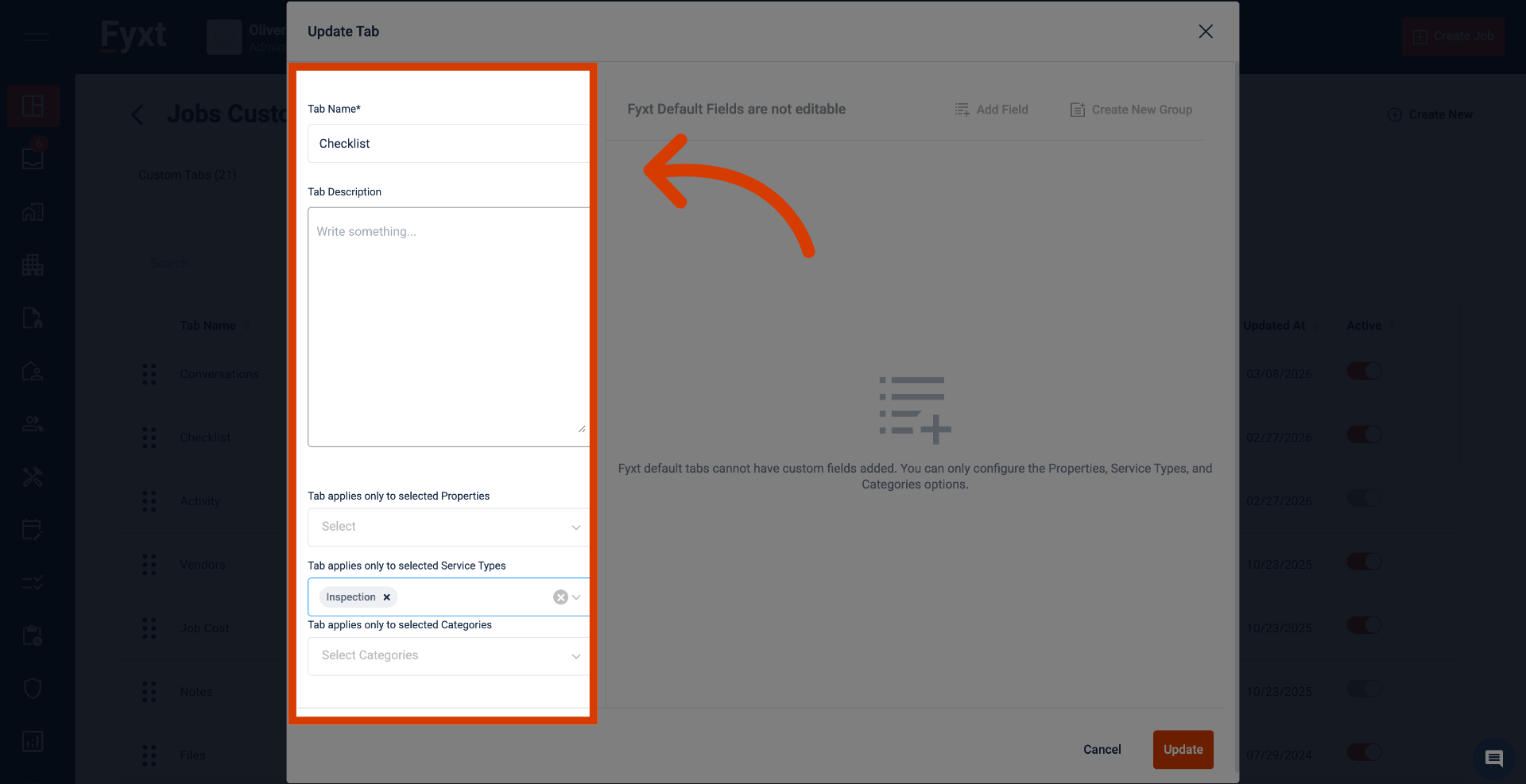
In the left detail panel, tabs can be applied to specific Properties, Service Types, and Categories. In this example, we are restricting Checklists to only display on Jobs with Service Type: Inspection, across all Properties and Categories.
6. Fyxt Default Tab Data
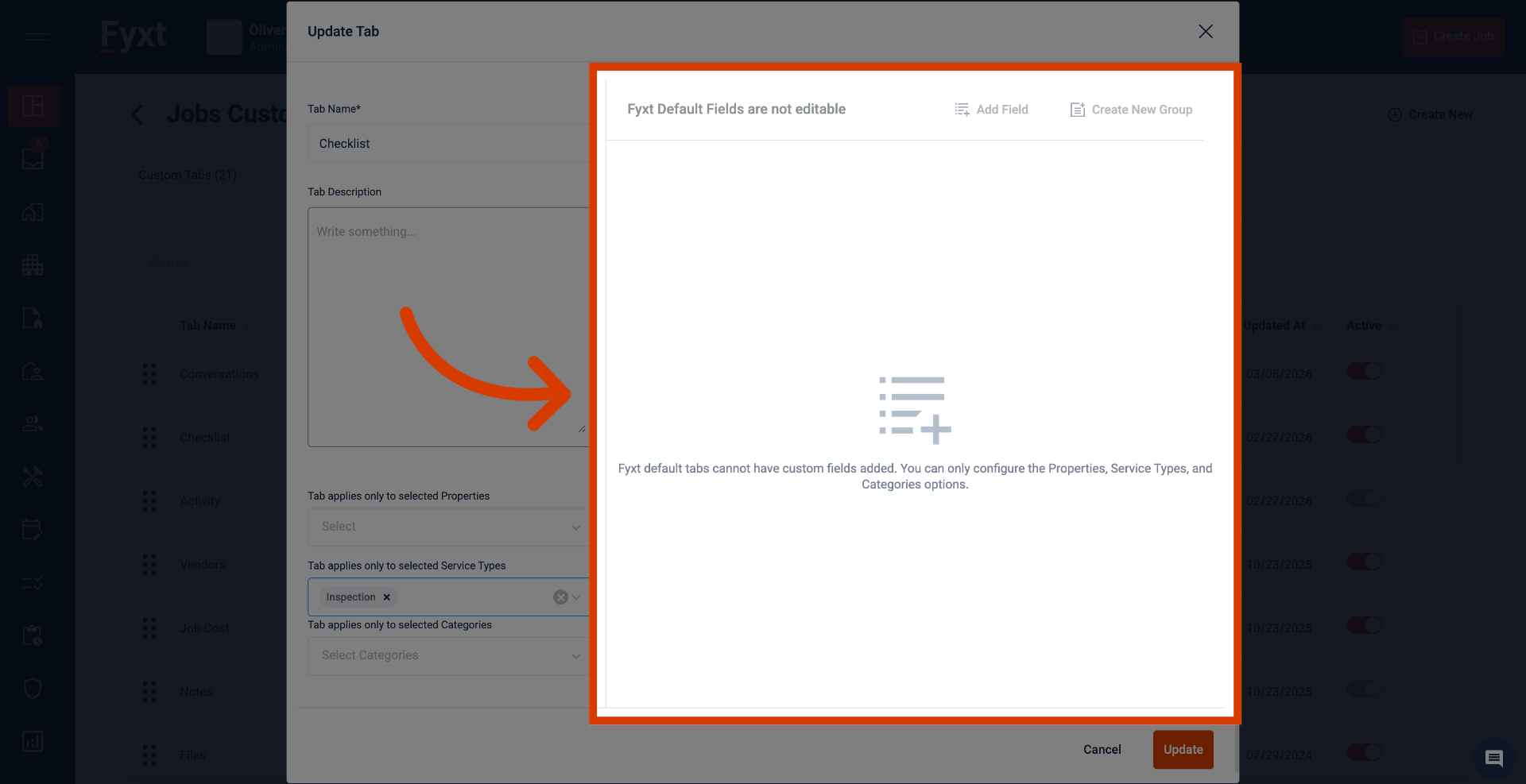
The only difference between Fyxt Default tabs vs Custom Field tabs is that specific data in Fyxt Default tabs cannot be edited.
7. Configuring Custom Field Tabs
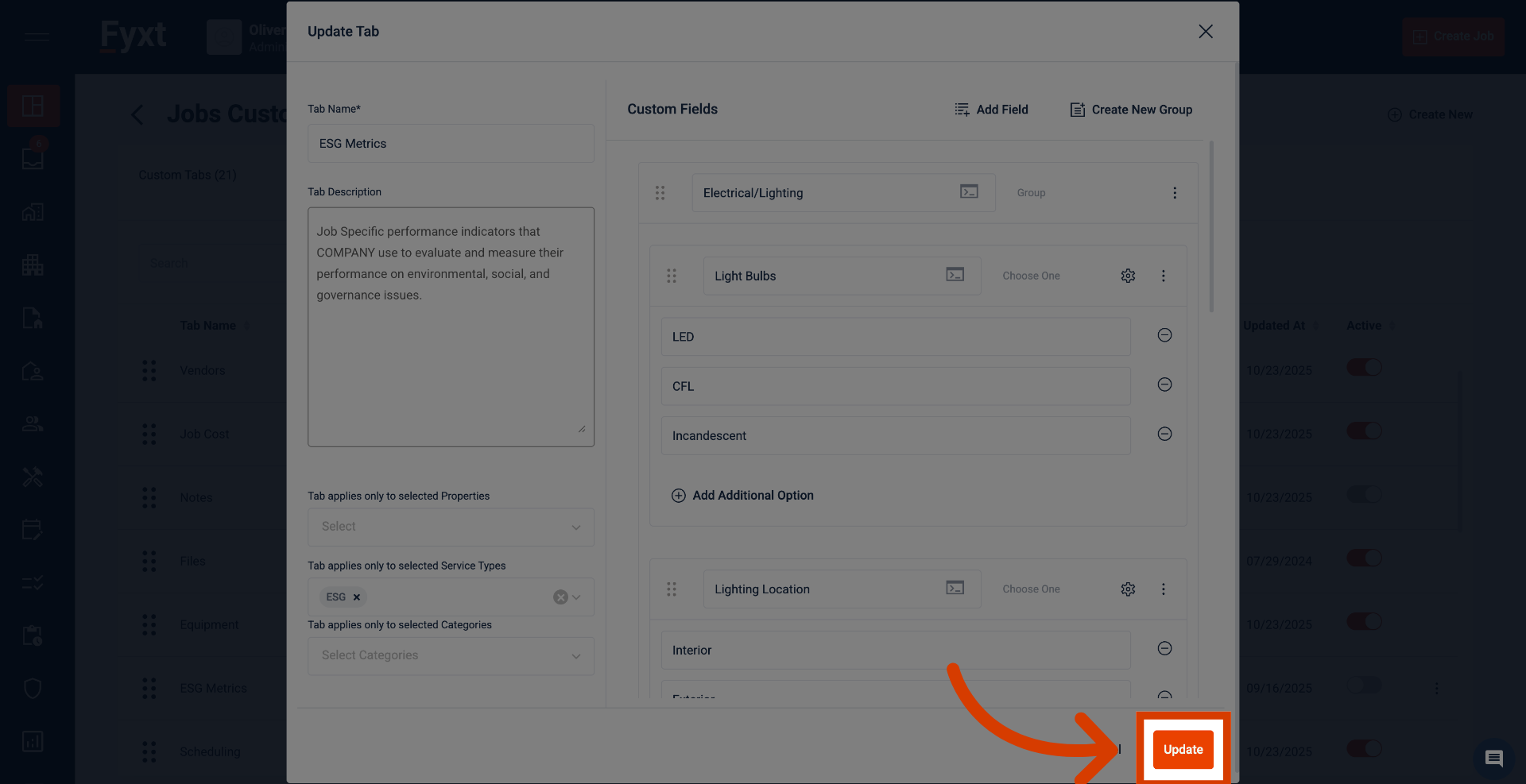
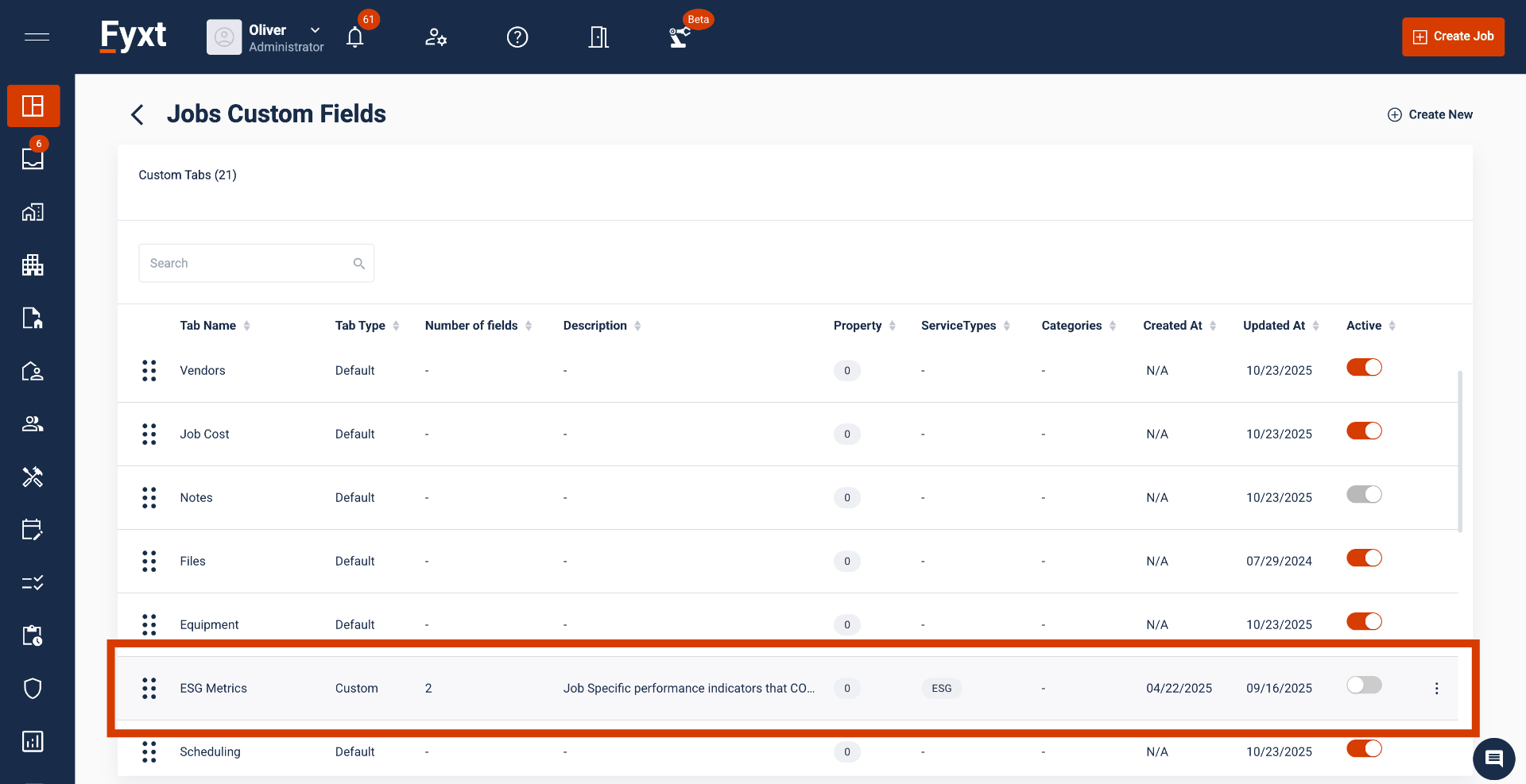
In this example, ESG Metrics is a Custom Field tab.
8. Editing Custom Fields
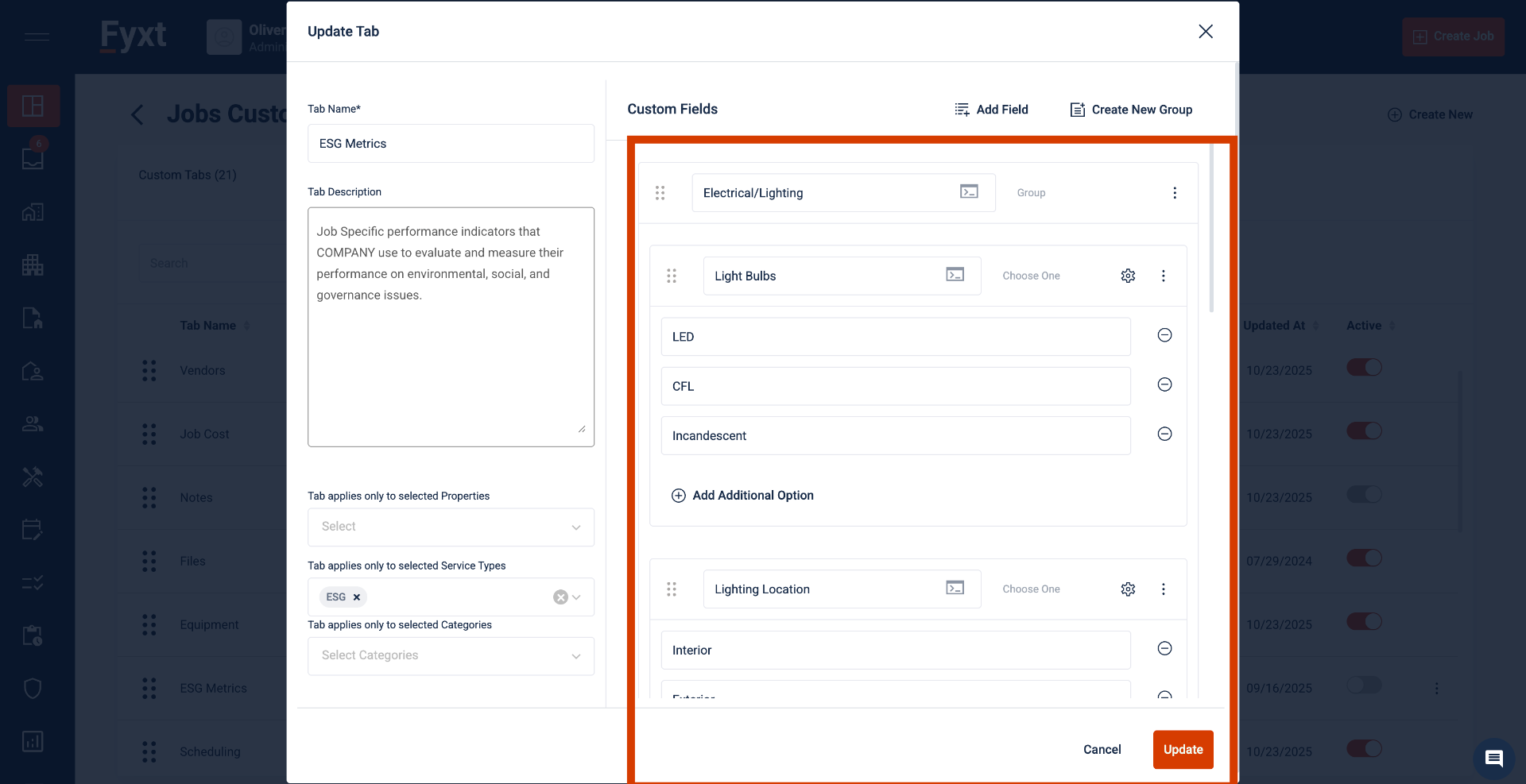
As you see, the right detail panel of Custom Field tabs displays all data added to the tab. Data can be organized into groups, dragged and dropped into place, and configured as the Field Types required.
9. Field Types
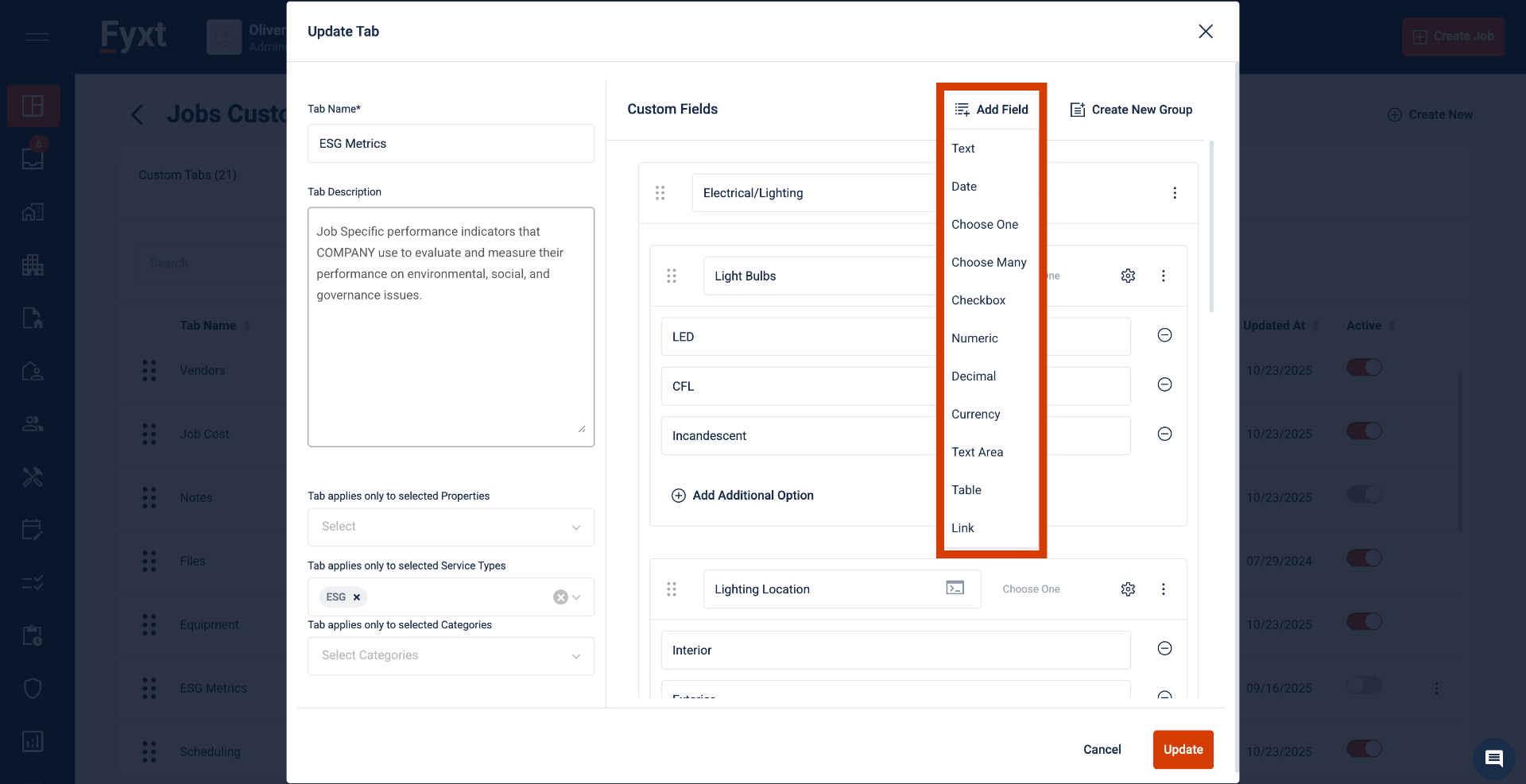
Field Types like text, date, currency, etc provide the flexibility to track and report on data as needed.
10. Field Preferences
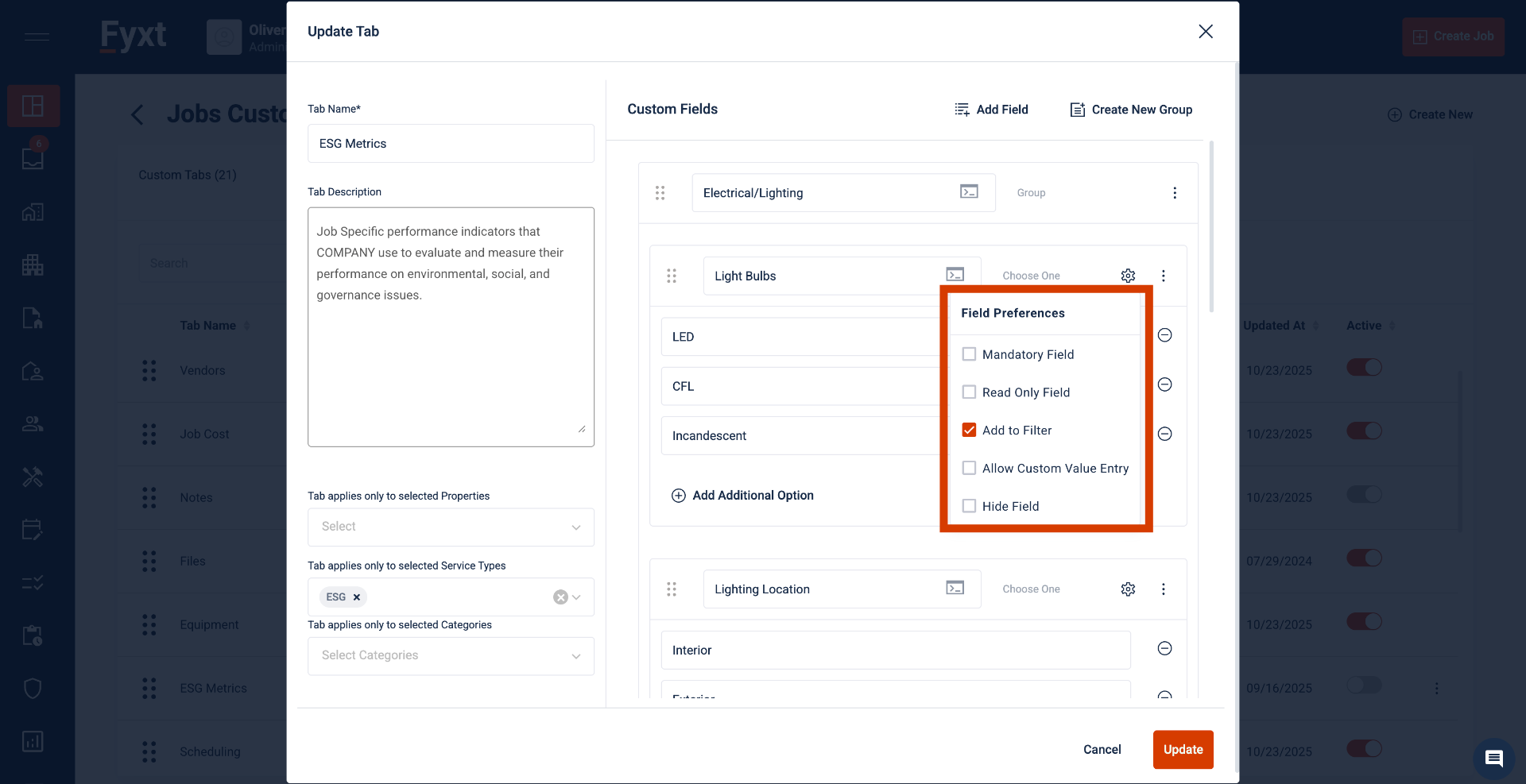
Field Preferences support even more customization. Mandatory Field denotes required fields when submitting a group of data to tables Read Only denotes a field that cannot be edited from users in Fyxt, often used for data displayed through integrations. Add to Filter allows you to filter for this field in the Jobs Dashboard, Custom Values provide additional flexibility, and Hide Field allows restricting visibility while still tracking required data.
11. Summary
Custom Fields allow infinitely customizable data tracking and reporting in Fyxt. They 'live' in host modules like Jobs, Properties and Equipment to augment data collected by module. Custom Fields in Jobs supports configuring data to capture, when to view data, and how to interact with that data.