![Fyxt logo small white.png]](https://helpcenter.fyxt.com/hs-fs/hubfs/Fyxt%20logo%20small%20white.png?height=40&name=Fyxt%20logo%20small%20white.png)
Fyxt's Approval Scenarios allow teams to create hierarchies of cost approvals by dollar amount. Use them to simplify approving small expenses while ensuring larger expenses are properly vetted and approved by designated team members.
How do Approval Scenarios work?
First you'll need to access the Approval Scenarios page by selecting the Manage button in your dashboard, and clicking Approvals
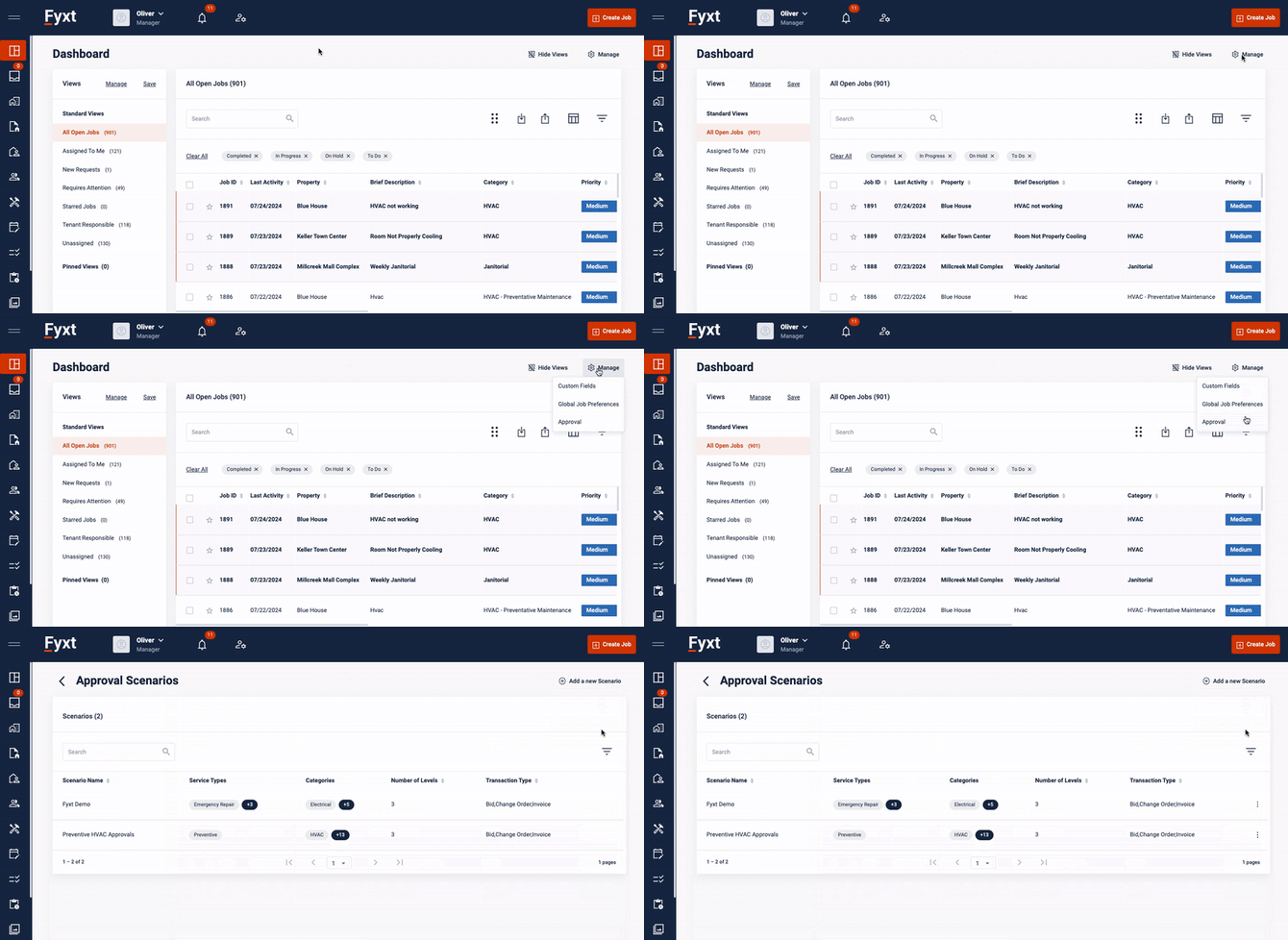
The Approval Scenarios page will list all existing scenarios, allowing you to edit or create new ones. To get started with a fresh scenario, click "Add a new Scenario"
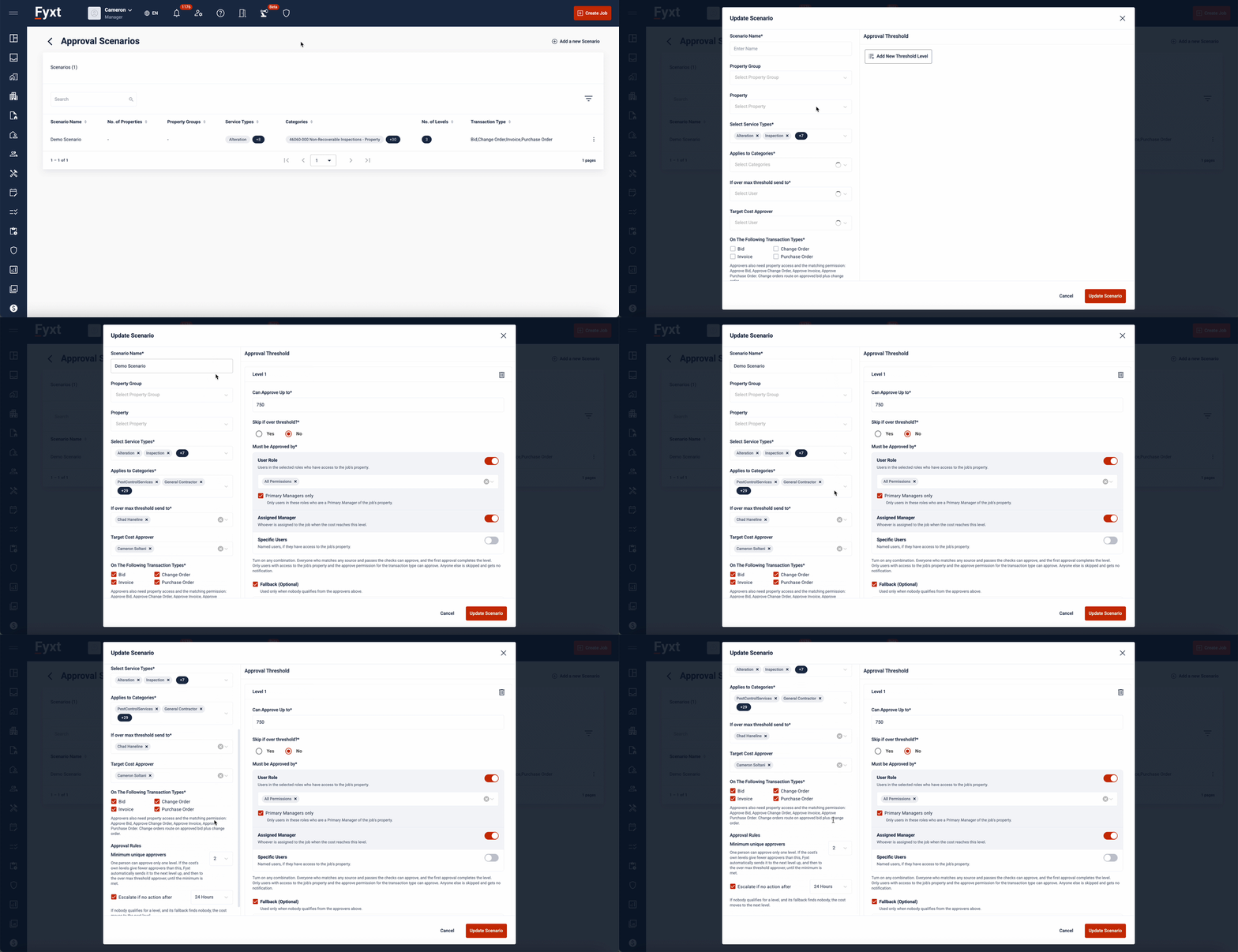
When creating an Approval Scenario, the left detail panel..
- Targets applicable circumstances where the Approval Scenario applies
- Identifies the final Approver (should a cost exceed the final limit in the scenario), and Target Cost approver (should a cost exceed the Target Cost on a Job).
- Defines the individual(s) who may approve amounts exceeding Target Costs of a Job.
- Applies the Approval Scenario to Bids, Change Orders, Invoices, and/or Purchase Orders.
- Defines a minimum number of unique approvers.
- Defines escalation periods.
The inputs of the form are explained below:
- Scenario Name is used to help you quickly identify one scenario from another
- Property Group is used to apply an Approval Scenario to all properties within the group. Applying an Approval Scenario to a Property Group is optional. If applied, the scenario will only apply to properties within the selected groups. If not applied, the scenario will apply across all properties.
- Property can be used to apply a scenario to specific properties. Applying an Approval Scenario to Properties is optional. If applied, the scenario will only apply to the selected properties. If not applied, the scenario will apply across all properties.
- Select Service Types to identify specific types of work which the scenario may apply to. These could be Capital Projects, Asset Replacements, Corrective Maintenance, etc. Service Types are fully customizable within an account to ensure accurate labels for the work your teams perform.
- Applies Categories to further refine circumstances where the scenario will apply.
- If Over Max Threshold is a field to define the persons who are eligible to make an approval when the dollar cost exceeds the final limit set. When identifying these approvers, you can either select a User Role, which will allow all individuals with the role assigned to approve, or you can select individual users.
- Target Cost (NTE) Approver defines the individuals who may approve a cost which exceed a Job's set Target Cost.
- On the Following Transaction Types allows you to define whether the Approval Scenario will apply to Bids, Change Orders, Invoices, or any combination of the three.
- Minimum Unique Approvers sets the total number of distinct individuals required to approve an overall Job Cost across all threshold levels (rather than per individual level).
-
Example (Requires 2 Unique Approvers):
- Approved: Level 1 is approved by John Smith and Level 2 is approved by Jane Doe (2 unique people).
- Blocked: Level 1 and Level 2 are both approved by John Smith. Because only 1 unique user approved, the request routes to the "Over Max Threshold" approver. If that approver is also John Smith, the Job Cost will be blocked from final approval.
-
- Escalate If No Action sets a time limit to prevent approval delays due to inactivity. Once the configured interval passes without action, the system automatically escalates the request to the next approval level, regardless of whether eligible approvers were available at the current level.
Remember: Only one Approval Scenario can apply to a given Job Cost. This means the combinations used to apply Approval Scenarios must be unique by Property, Category, Service Type, and Cost Type.
Defining approval thresholds and approvers:
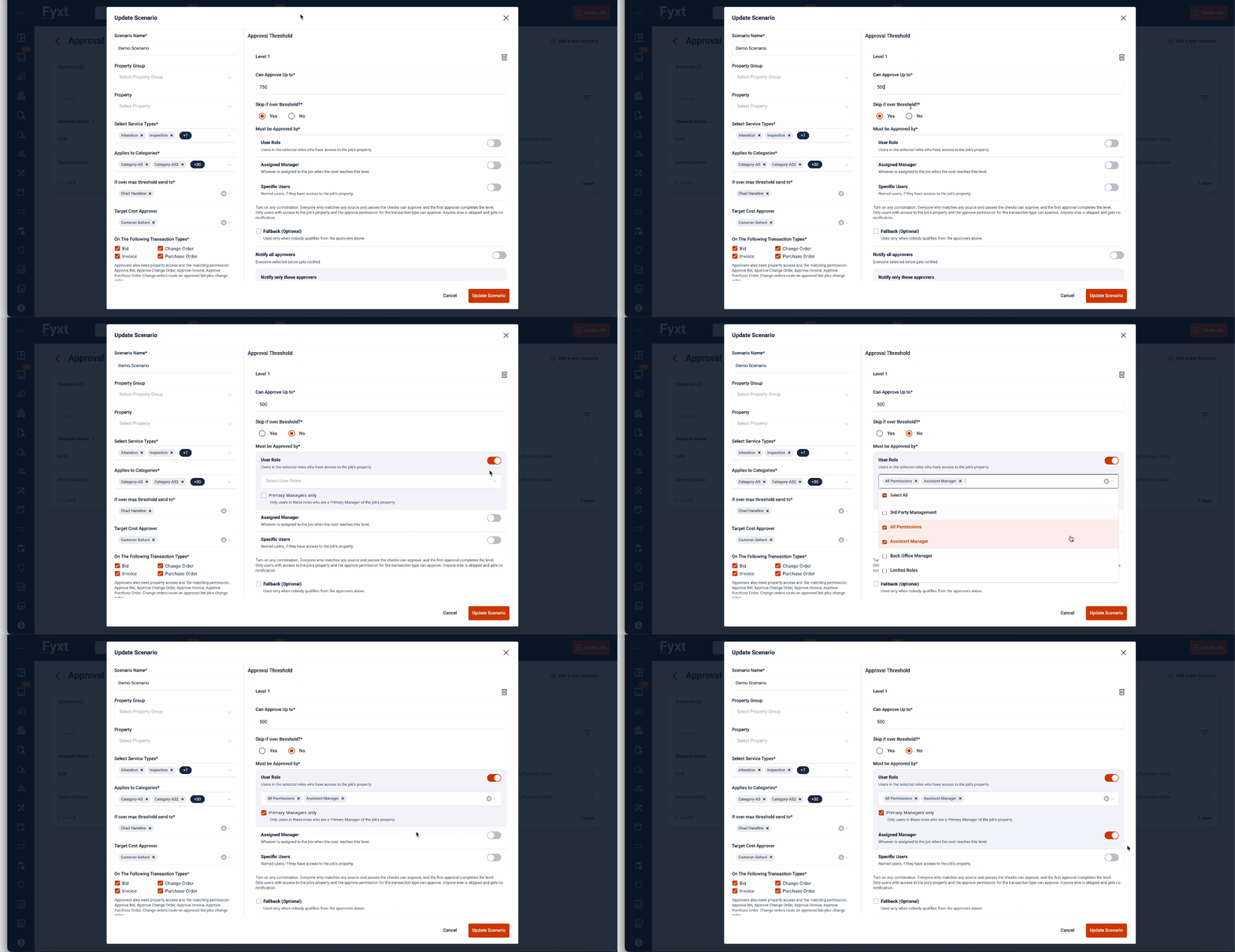
Start by defining thresholds users can approve up to. Then define whether the approvers of this level should be skipped if a given cost exceeds their approval level. If choosing to skip a threshold, all costs exceeding the threshold will skip the level's approvers, being directed to the next level instead.
Tip: Select 'no' for the 'Skip if over threshold value' to allow lower level approvers to reject a cost before it works it's way to top level approvers - saving senior approvers time by filtering the costs requiring for their approval.
Next, select the eligible approvers for the level. Approvers can be applied by
- User Role: Any user on a given property's management team, with a corresponding User Role is eligible.
- Primary Managers Only: Only users with a corresponding role and who are Primary Managers of the property's team are eligible to approve.
- Assigned Manager: Selects the Job's Assigned Manager.
- Specific Users: Allows the selection of specific individuals.
Note: Setting up roles or users in a scenario does not guarantee approval access. In live workflows, an approver must meet three requirements: match the scenario configuration, belong to the property's team, and possess user permissions to approve Job Costs.
Defining approval fallbacks:
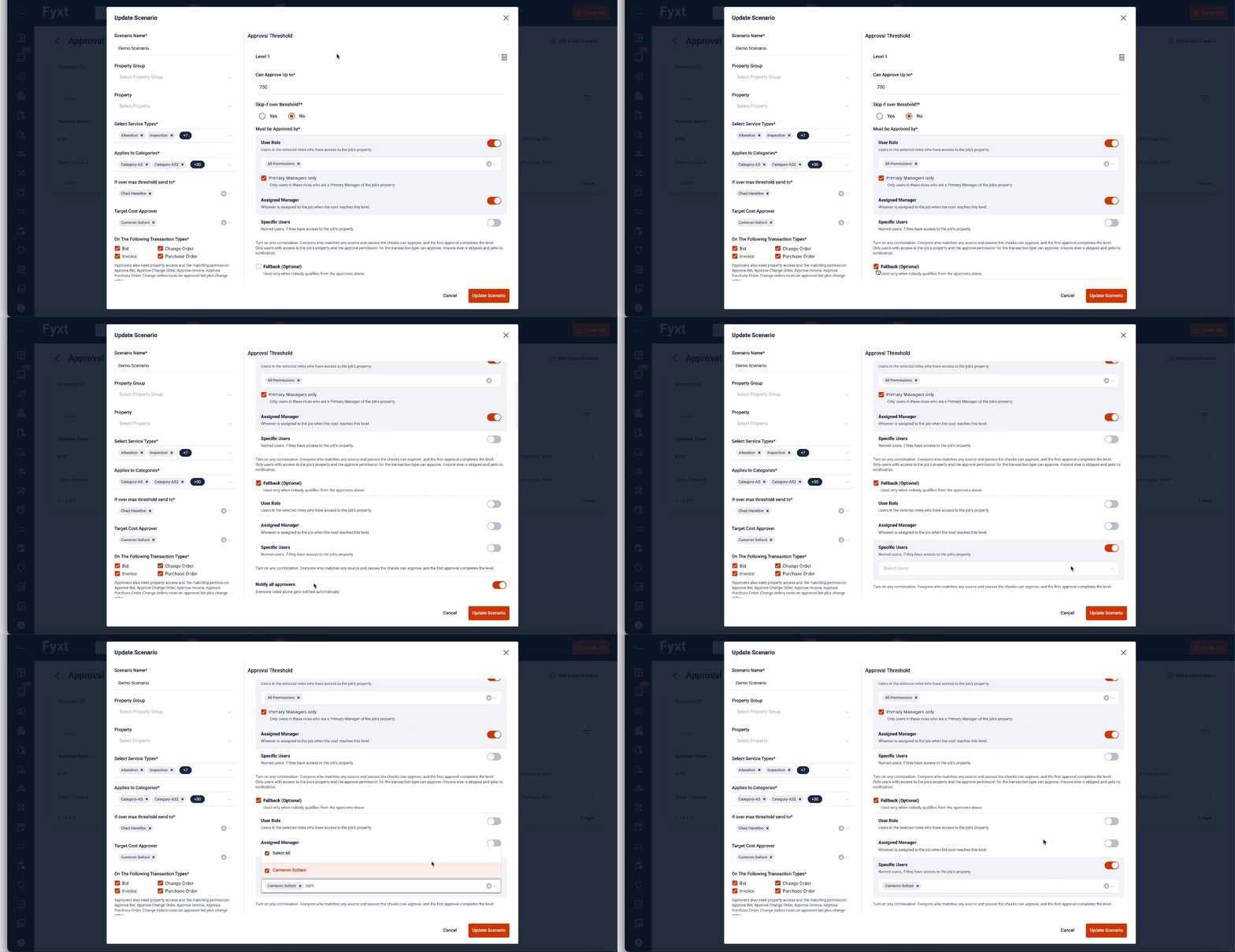
Approver Fallbacks ensure cost submissions don't get stuck when no primary approvers are eligible.
Common Causes:
- No users on the property team hold the designated role.
- No Assigned Manager is assigned to the Job.
- Selected specific managers do not belong to the property team.
How It Works: Fallback logic automatically activates only when no primary approvers can be identified. Fallback approvers will not receive notifications unless all primary approver options are empty or ineligible.
Defining Notified Parties:
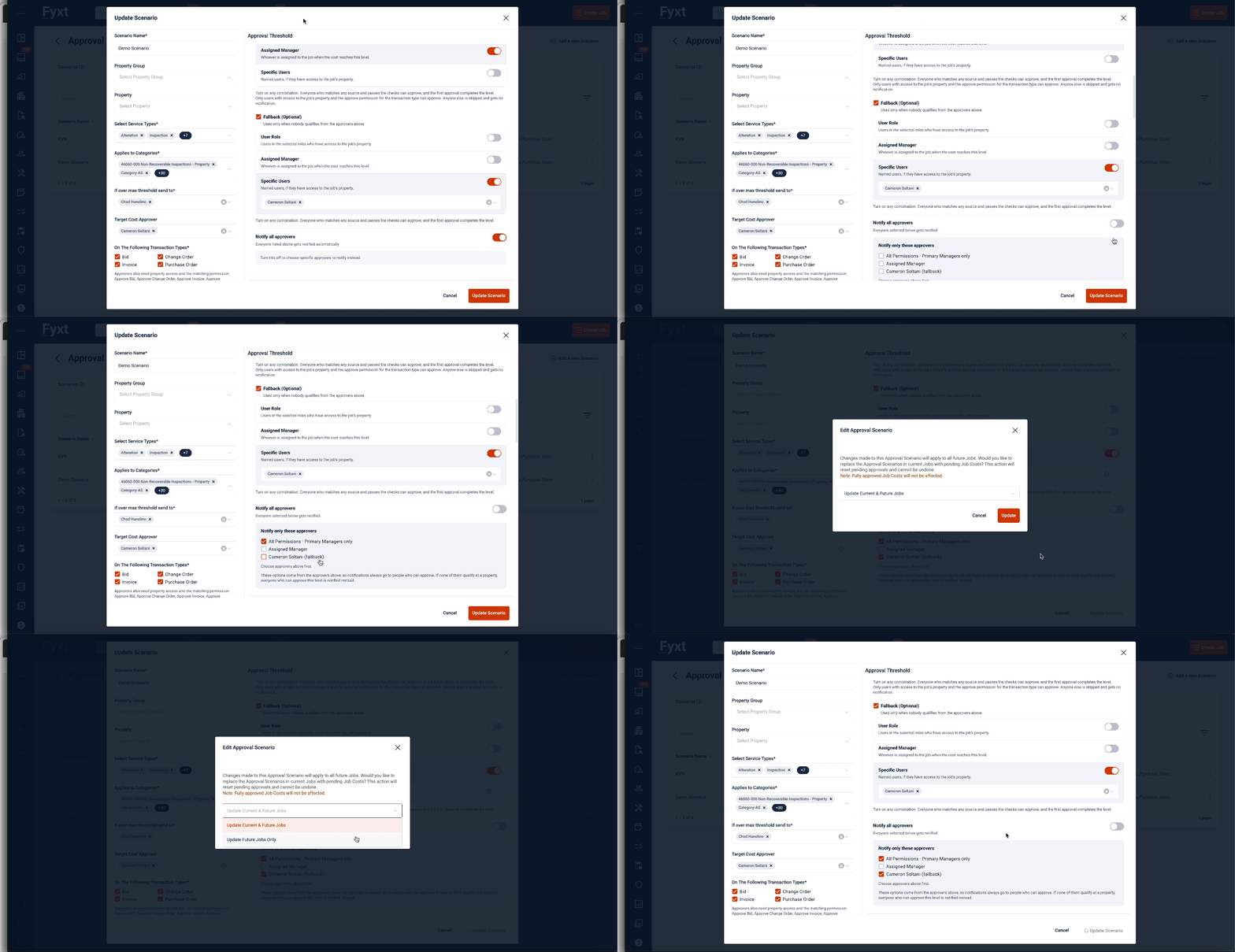
By default, all eligible approvers receive notifications for their assigned level.
To customize notifications:
- Turn off Notify All Approvers.
- Select specific individuals from your eligible approver list to receive alerts.
Benefit: Keeps alert notifications focused on key reviewers without removing approval permissions from the rest of the group.
From here, you can continue adding more thresholds to the Approval Scenario, or Save your updates. When saving updates to an Approval Scenario there are 2 options
- Update Current & Future Jobs: This option resets the approvals and notifications for any Job Costs meeting the scenario's conditions which are not yet fully approved. Fully approved Job Costs will not be affected.
- Update Future Jobs Only: This option applies to your changes to future created costs only, having no impact on existing cost submissions across your portfolio.
With setup complete, let's dive into Approval Scenarios in Jobs
There are a few possible ways to interact with Jobs that trigger Approval Scenarios. Either..
- A received cost exceeds your approval threshold
- A received cost is within your approval threshold, but prior approvals are still pending
- A received cost is within your approval threshold and eligible for approval.
Receiving Costs which exceed your approval limit
As you might expect, you won't be able to approve costs which exceed your approval threshold. When viewing such costs, you'll see a display which shows approvals are pending.
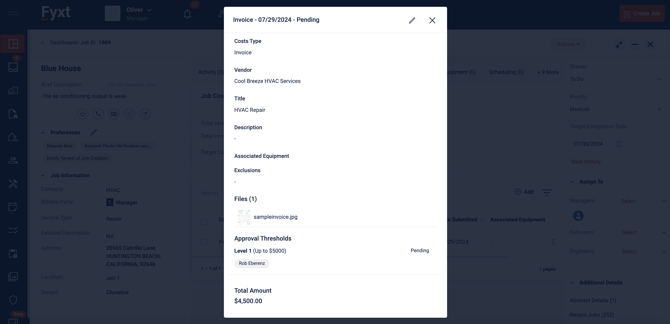
As you can see, Fyxt will identify those individuals who are eligible to make the approval.
Receiving Costs within your approval limit, but with prior approvals still pending
Remember that when creating Approval Scenarios, there is a setting to skip thresholds if the received cost exceeds lower threshold levels, forwarding the approval directly to higher thresholds with eligible approvers.
If this setting is off, lower level approvers will be required to respond to a cost with an approval or rejection. Rejecting a cost at any level has the same affect: the cost will be rejected. Approving a cost at lower levels simply moves the cost to higher level approvers to respond themselves.
Approving multiple levels at once is possible if a user is an eligible approver of subsequent levels. For example, a common designated approver of levels 1, 2, and 3 will approve all three levels with a single approval.
Tip: Requiring your teams to make judgements at each approval level can save senior approvers time by rejecting costs early on - simultaneously ensuring only relevant/acceptable costs make their way to senior approvers.